Use the following procedure to modify an existing rejection reason for user access requests:
1. Click Rejection Reasons in the PDAuth
Menu Bar.
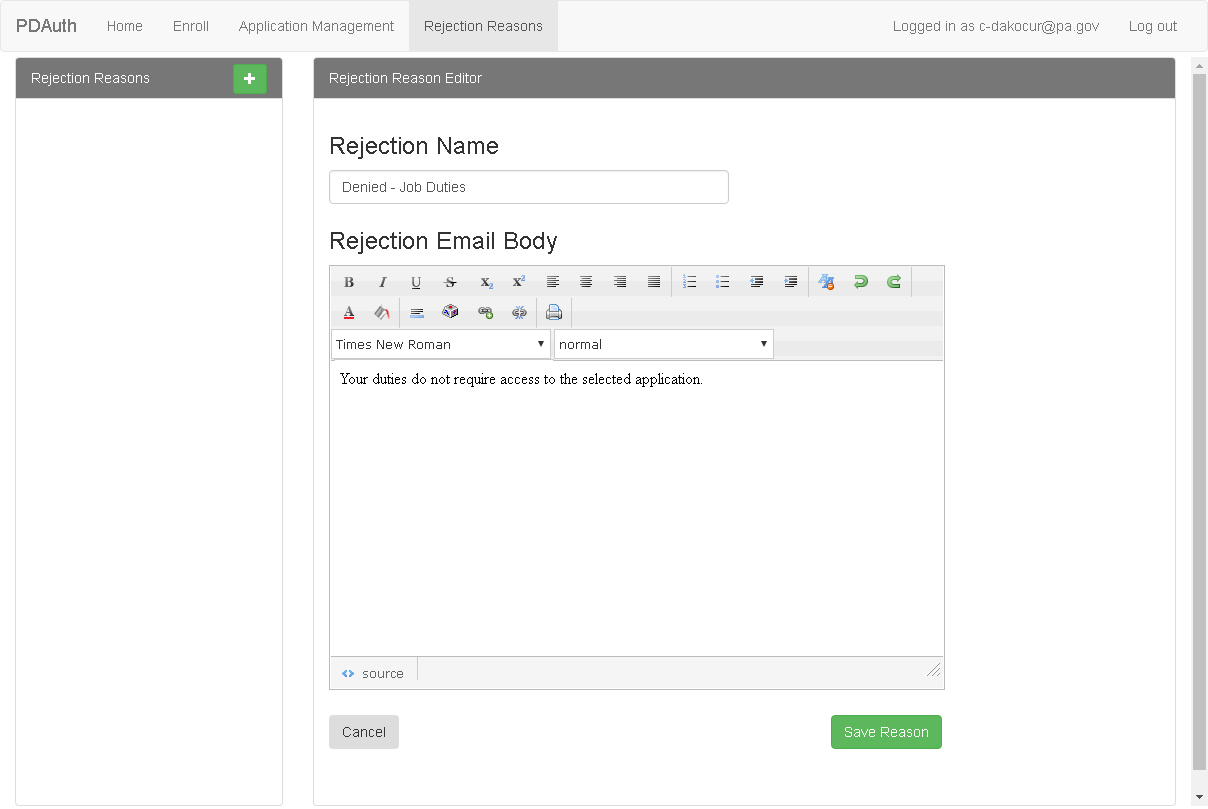
The Rejection Reasons
Editor Page appears.
2. Select a
rejection reason from the from the Rejection
Reasons list.
The Rejection Name and Rejection
Email Body appear in the Rejection Reason Editor area.
3. Change the
fields as desired and click Update Reason.
The reason is updated.
Use the following procedure to add a new rejection reason for user access requests:
1 Click Rejection
Reasons in the PDAuth Menu Bar.
The Rejection
Reasons Editor Page appears.
2 Click Add
New Reason.
"New Reason" appears in the Rejection
Reasons list, and blank Rejection
Name and Rejection Email Body
appear in the Rejection Reason Editor area.
3 Enter a Reason Name in the field provided.
4 Open the message in your
email account and click the link provided.
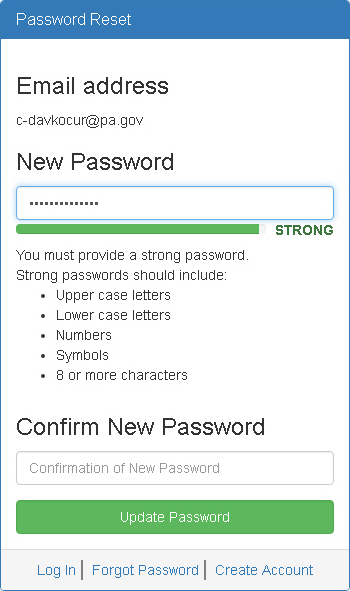
The Password Reset window
appears.
5 Enter a Rejection Email Body in the field provided.
6 Click
Update Reason.
The Rejection Reasons appears in the Reasons
list.