Point
Use
controls on the Point tab to indicate a single point on a map.
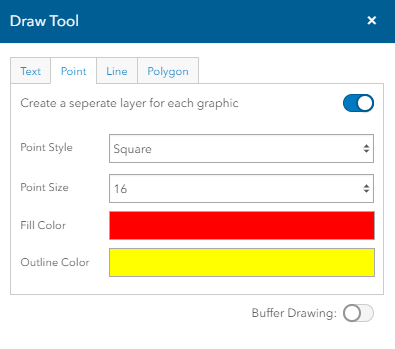
Point
Type - Select the type of marker you want to
use to indicate the point from this drop down list.
Point Size - Select
the size of the marker from this drop down list.
Fill Color - Select the
color of the marker using the Color Control.
Click here for
a description of color controls.
Line Color - Select the
outline color of the marker using the Color Control.
Click here for
a description of color controls.
Create
a separate layer for each graphic - Select
this checkbox
to place each graphic as its own layer. Clear the checkbox to place all
objects as a single layer.
Buffer Drawing
- Turn on the togglebox to display buffer controls for showing
a given distance or distances around the selected feature. Click
here to show buffer options.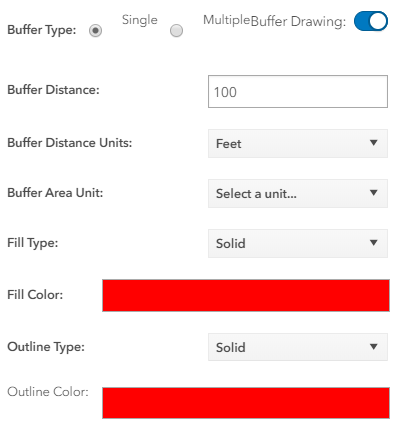
Buffer Type - Select the radio
button for the type of buffer you want to display:
· Single - Displays a single
distance from the selected feature, for example, 10 miles.
· Multiple - Displays more than
one distance from the selected feature, for example, 5, 10, and 15 miles.
Buffer Distance - Enter the
distance from the feature that you want to display.
Note: When multiple Buffer
Type is selected, enter numbers separated by commas for each distance
you want to display.
Buffer Distance
Units - Select the units from the drop down list.
Buffer Area Unit - Select a Unit
from the dropdown list.
Fill Type - Select the
type of fill, solid, Backward Diagonal,Cross, Diagonal Cross,Forward Diagonal,
Horizontal, Vertical and None for the buffer area.
Fill Color - Select the
color of the buffer's fill.
Outline Type - Select
the type of outline (solid, Dotted and dashed options) you want for the
buffer.
Outline Color - Select
the color of the outline.