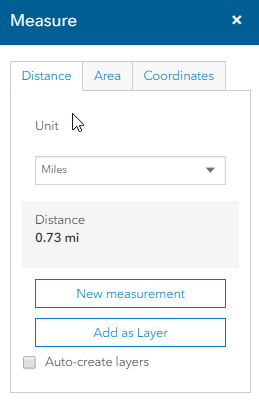
The Measure Tool window appears when you select Measurement from the Tools menu.
The Measure Tool window contains the following controls:
Distance - Click the Distance tab to find the distance along a path you define. The unit of measure appears on the dropdown only after a drawing is initiated. Click the units to display a drop down list, where you can select other units.
Click here to display a list of available units of measure.
Area - Click the Area tab to find the area contained within a region you define.
The
unit of Area appears on the dropdown only after a drawing is initiated.
Click the unit of measure to display a drop down list, where you can select
other units.
Click here to
display a list of available units of measure.
Coordinates - Click the Location
button to find the lat/long coordinates of any point on the map. The lat/long
format appears on the right of the buttons. Click the format to display
a drop down list, where you can select other option.
Click here to
display a list of available lat/long formats.
Caution: If you want to create a drawing layer while performing an Area measurement, you must close the polygon by double-clicking at the start point. If you only double click without closing the polygon, you will receive an accurate measurement. However, the drawing layer will be added to the map as an unclosed polygon. The drawing layer only displays the lines you have drawn.
Auto-create layers - Click this checkbox to automatically add measurements you create to a drawing layer. The drawing layer displays the measurement on the map, and the description on the Legend displays the numeric measurement in selected units.
Add as Layer - Click this button to manually add the current measurements to a drawing layer. The drawing layer displays the measurement on the map, and the description on the Legend displays the numeric measurement in selected units.
 (Close)
- Click this button to close the Measure Tool window.
(Close)
- Click this button to close the Measure Tool window.